

Is Your TV Ready for Signage? A Guide to Setting Up Digital Display Software
There are tons of digital displays out there, and they can be seen in all kinds of places, including retail stores, restaurants, offices, & corporate lobbies. You may be asking yourself right now: “If I have a TV, can I use it for digital signage?” The answer is yes… but there are some requirements you must meet in order to do so (i.e., have the proper digital display software, & setup).
Also read – Top 5 Benefits of Using Digital Displays in Commercial Spaces
In this blog, we will show you how to create an engaging and successful digital signage solution using your TV.
1. Verify Your Television is Signage-Capable

Before setting up any Digital Display Software, it’s important to ensure that the television has the following specifications:
- HDMI input ports to connect to a media player
- Full HD or 4K resolution providing optimum image quality
- Durable commercial grade (please seek professional assistance when using 24/7)
- Ability to mount on a wall to maximize visibility
While consumer TVs can work just fine as signage for small businesses, commercial TVs are much more reliable to operate constantly in a high-traffic location.
2. Choose Appropriate Media Player / Device
Digital Signage relies on a Media source in order to display content on a Digital Display therefore you will need some type of media player. Below are four examples of different types of devices that would serve as an appropriate Media Player for this purpose:
- Android Media Players
- Windows Mini-PC’s
- System on Chip Displays
- Amazon Fire TV Stick (for Simple Requirements)
The connection between your Digital Display and Media Player will be via an HDMI cable and will enable your Digital Display Software to run. Before Choosing your Media Player, however, it is important to ensure it will allow for smooth playback of video, animation and live video within the application.
Also read – Digital Signage vs. Traditional Signage: Which One Delivers Better Results
3. Install Reliable Digital Display Software
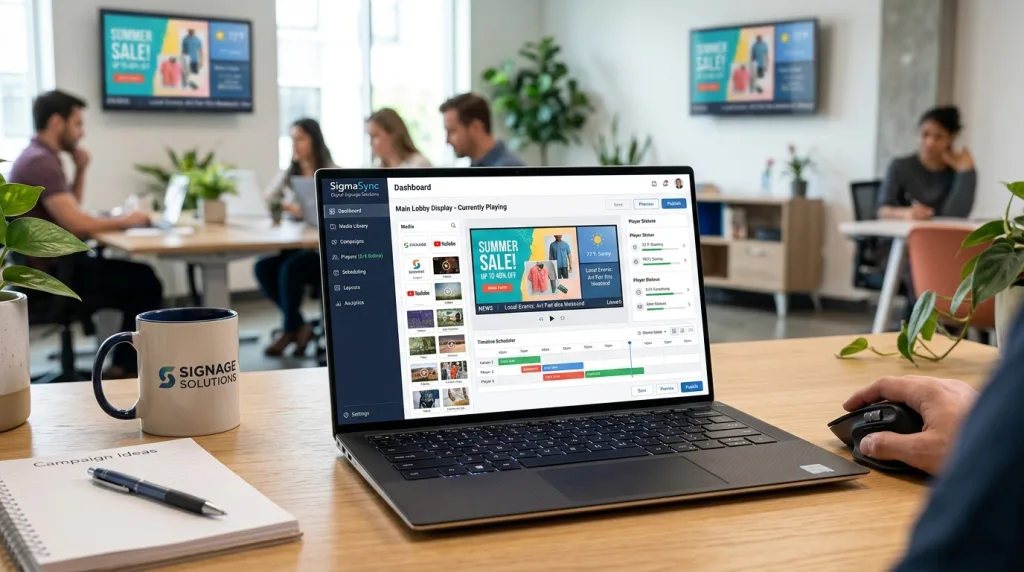
Software is the heart of your Signage System. A solid Digital Display Software platform allows you to:
- Upload and schedule your content remotely
- Control multiple screens from one dashboard
- Display video, images, live news, weather, or social feeds
- Instantly update your content without manual intervention
With the use of a fully automated solution from automateB, businesses can control their displays from anywhere and have consistency in branding as well as timely updates.
4. Make Sure Your Content is Optimized
If Your Content Is Not Optimized, The Best Hardware / Software In The World Will Do You No Good.
Use These Tips:
- High-Definition Photos / Videos
- Large Text for Easy Reading
- Consistent Brand Identity
- Rotate Content Regularly to Avoid Boring Viewers
- Use Motion Graphics to Capture Attention
Professionally Designed Digital Display Content Software Provides Pre-Designed Digital Display Templates to Help You Design & Schedule Your Content Quickly and Easily.
5. Confirm Vital Internet & Power Resilience

In order to use a cloud-based signage solution, a trustworthy internet connection is a must. Check that: Wi-Fi or Ethernet connectivity deliver content seamlessly, digital screens are positioned in areas close to primary connection points, and that you have a battery back-up or surge protection so your screens continue to operate smoothly with less user disruption.
Also read – How to Turn Any Screen into a Digital Display
6. Test, Monitor and Scale
Once you have set up and installed your display system, it is important that we check out the quality of the video playback. Also confirm that the schedule is working as expected and that the remote updates to your signage are visible at all locations throughout the business immediately. Today’s Digital Signage Software has a unique set of analytics monitoring tools to be able to track and monitor performance and uptime on your displays. For future business growth, you are able to easily expand your Digital Signage from one screen to multiple locations using automateB central management system.
Also read – Top 10 Benefits of Using Retail Digital Displays
Conclusion
Creating a business-like sign with your television has never been simpler when you have the right combination of equipment and a proper plan of action to go along with it. You will create an attention-grabbing, effective digital sign with proper equipment, trustworthy digital display software, good content, and reliable connectivity.
Using automateB, organizations can centrally manage, schedule, and scale their digital signs through one platform. If you have the hardware available to use your television as a business-like sign, the next step is to supply your television with suitable digital display software and utilize that software to produce innovative, high-quality images on your TV today!
Frequently Asked Questions (FAQs)
1. Can I connect Digital Display Software to any TV?
Yes, as long as you connect a media player with Digital Display Software, you should be able to connect it to a TV that has an HDMI connection. This includes the vast majority of TVs manufactured today.
2. Will I need to have Internet access when I use Digital Display Software (cloud-based)?
You will need to have Internet access in order for cloud-based Digital Display Software to receive updates and change content remotely. You might be able to playback offline after the media has already downloaded to the media player.
3. Are the digital display software programs from automateB appropriate for small companies?
Definitely. automateB provides scalable technologies that work well for retail stores, eateries, office spaces, and businesses large and small.
4. How safe is the automateB Digital Display Software?
automateB uses an encrypted connection and a secure cloud platform for data and content protection.
5. Does automateB Digital Display Software have the capability to run several screens?
Yes, you can use a single dashboard to access multiple screens at various locations; this is centralized access through automateB.